
MightyViewer: Getting Started
About the MightyViewer Application
MightyViewer is installed on the viewer PC. You use it to configure a list of stations for monitoring and remote control.
To connect MightyViewer to a station, the station must run VNC server software such as TightVNC Server.
Monitoring tab
The Monitoring tab lets you monitor all configured stations and station groups in real time.
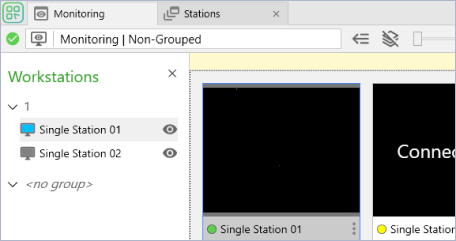
Stations tab
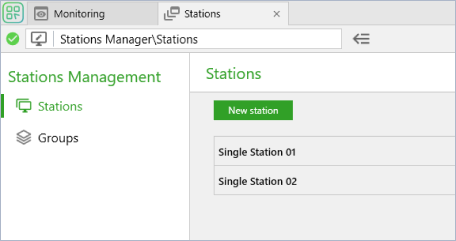
Use this tab to add and manage stations.
You can open it in two ways:
- Monitoring tab → left panel → Manage stations.
- Main menu → Stations.
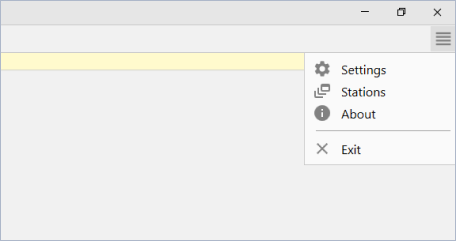
Main menu
Use the main menu to open station management, settings, and other application commands.
Adding a New Station
You can connect and configure stations from the Stations tab.
Click “New station” to open the input window:
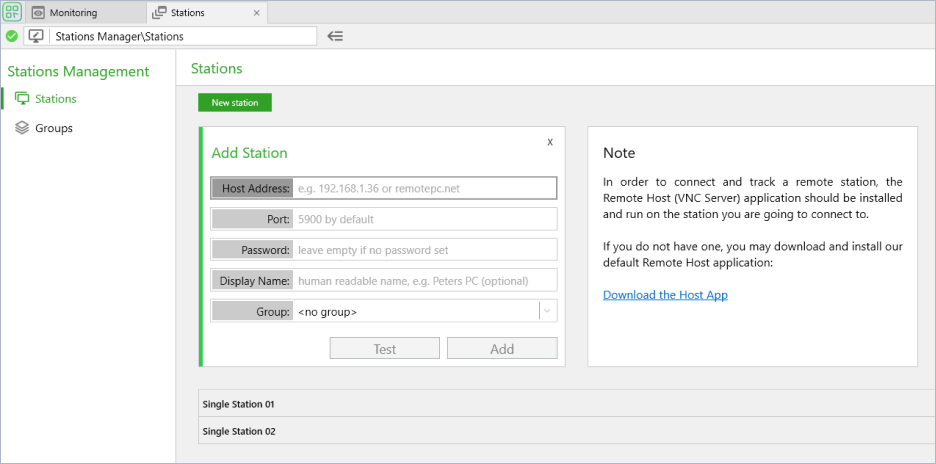
If the configuration is correct, click “Test”. The message “Status: Successfully connected” appears.
Click “Add” to save the station configuration. You can then monitor the connected station in the list of workstations on the Monitoring tab.
Configured stations connect automatically when the application starts, without any additional action from the user. Stations also reconnect automatically after connection failures.
Multimonitoring Tab
You can manage a station or a group of stations from the left panel or from the Stations management menu.
Possible actions with a station
- Add a new station
- Enable or disable the station on the Monitoring tab
- Hide the station on the left panel
- Change the order of stations on the left panel
- Add the existing station to a group of stations (each station can belong to only one group at a time)
- Remove the station from the group
- Edit the station configuration
- Open the station in a separate Single Station tab
- Scale the station preview
Possible actions with a group of stations
- Create a new group
- Enable or disable the group of stations on the Monitoring tab
- Hide the group of stations on the left panel
- Display all stations on the Monitoring tab with or without sorting them into groups
- Edit the group configuration
Single Station Tab
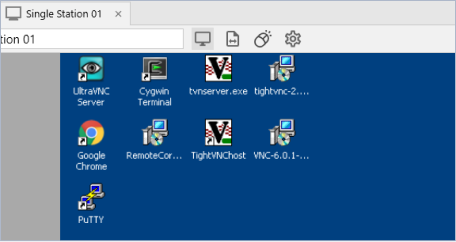
If you open an individual station in a separate tab, you can monitor it using more screen space. This also enables control features such as file transfer, full screen, and quality/speed optimization.
Single station controls
- Clipboard exchange: copy and paste text between the station and MightyViewer using the mouse or keyboard shortcuts (Ctrl+C, Ctrl+V)
- File transfer: available with TightVNC Server or another VNC server that fully supports the Tight file transfer extension
- Enable or disable mouse, keyboard, and clipboard control
- Quality/speed optimization in Screen settings
- Full screen mode in Screen settings. To exit full screen, move the cursor to the top center of the window border. A toolbar will appear; click the appropriate button.
Application Settings in the Main Menu
Automatic update checks
MightyViewer can automatically check for updates and notify you when one is available. This option is enabled by default, and you can disable it.
You can also check the website or contact the support team.
For more specific questions, see F.A.Q..